Monday, January 4, 2010

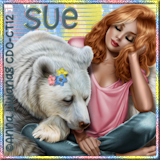
Spring is in the Air ( PTU )


To view animated version of tag just click tag.


This tutorial is for those with a good working knowledge of psp.

Supplies Needed

Tubes of choice, I used artwork by Suzanne Woolcott.
Scrapkit, "(PTU) A Fae For All Seasons - Spring Edition" from Oopsie Daisy.
Font of choice, I used Snooty Fox NF (PTU).
Template, I used Frame #4 from Rachel.
Mask, I used #210 from Insatiable Dreams.
My Supplies


Let's Begin!

Open Frame
Shift D and close original
Resized frame by 80% but don't check the all layers box.

This will give you room to move around
but don't forget to crop/resize when done.

Delete the copyright layer.

Open supplies and resize and minimize until we need them.
I resized kite, umbrella and grass at 30%, and the clouds by 50%.

Add new raster layer and move below frame and fill with white.

Paste paper of choice, I used paper 9. Apply mask and merge group.

Paste clouds and duplicate twice and move one to right at top of frame
and one to left top of frame and the third one in middle but inside frame.
Use mine as a guide.

Paste Umbrella and rotate it to the left 45 degrees.

Add kite and mirror and place to right top of tag or where ever you want.

Paste grass and move to bottom left and duplicate and move to the right and merge together.
Using selection tool, make a square the size of frame and invert it and then hit delete on grass layer.

Paste paper of choice and hit delete or use background I supplied.

Select none.

Paste tube.

If you are not going to animate tag then paste wordart I supplied or your own.

Add name.
I added Inner Bevel to mine with these settings...

Bevel 2 , Width 2 , Smoothness 2 , Depth 2 , Ambiance 0 , Shininess 2 ,
Color White , Angle 315 , Intensity 45 , Elevation 35

Add any other elements of choice.

Add dropshadow to all layers. I used 1,1,35,3, black.

Add copyright.

To do animated version, leave wordart layer off tag in psp
and copy merged tag and paste in AS.
Ctrl L until you have 7 layers total.

Open animation I supplied and Ctrl A and drag them to first layer of tag.

Save as a gif.

If you want to make your own wording and animate it
just simple type text in psp and add inner bevel like above
and add dropshaddow and copy it and then paste it in AS.

At top go to effects and click Insert Image Effects and use this setting...

Effect - Rotate Colors
Effect Length - 1.2
Frames per second - 5
Total of 6 frames
Click OK.

That's it - now you have animation like mine.


Friday, January 1, 2010

Happy New Year !!!

Wednesday, December 30, 2009

Men...


To view tag with animation just click tag and
there is a different version below as well.


This tutorial is for those with a good working knowledge of psp.

Supplies Needed

Tube of choice, I used artwork by Tyson Mcadoo.
Font of choice, I used VIP and Broadway(PTU).
Template, I made.
My Supplies.
Plug-In : Optional
EyeCandy 4000 : Gradient Glow
EyeCandy 5 Nature : Smoke


Let's Begin!

Open Template
Shift D

Select white rectangle layer and float it and then invert it.

Paste tube or image and place it how you like it and then hit delete.
If you want any part of tube outside frame make
sure you duplicate the tube before you hit delete and then just use
eraser tool and erase what you don't want to show and make sure its above frame layer.

I provided my wordart that I used but please feel free to write your own and make it yours.
To write text on a curve like mine just select the eclipse tool on circle
and draw out a circle a little smaller than the template background.
Then select your text tool and when you see the A on a curve write your wording.
Then in layers pallete click on the plus sign of your vecter layer and hide the circle y clicking the eye.

Add a gradient glow to the frame if you want.

Change color of wordart and mask layer to match your tube or image.

Add dropshadow to all layers.

Add copyright if needed.

You are done!

To Animate Tag
if using same tube as mine

Copy Merged tag from PSP to Animation Shop

Ctrl L untill you have 3 frames.

Open smoke I supplied and Ctrl A and drag it to tag.

Then save!

To make smoke for a different tube

In PSP select area you want smoke by using your freehand selection tool
Add new Raster Layer then use EyeCandy 5 Nature - smoke
The settings are different depending on the area you want smoke and image you are using.
Just play with the setting untill you like them.
Add a new layer again and change settings of smoke by hitting random seed and / or length.

Here is another version of tag I made.
Both templates are supplied for your choice.


Friday, December 25, 2009

Merry Christmas Everyone!


Friday, December 18, 2009

I got an award...


Thanks you so much Chas for the award. It means a lot!

The rules are:

Put the name and link of who gave you this award on your blog
and pass it on to 5 blogs which you think are AWESOME...
So, I pass it on to...

Ivy

Krissy

Missy and Yvette

TammyKat

Dawn

Thursday, December 17, 2009

Cold Outside (FTU)


This tutorial is for those with a good working knowledge of psp.


Supplies Needed

Tubes of choice, I used artwork by Suzanne Woolcott.
Scrapkit, "Baby it's cold outside" from Ivy's Inspiration.
Font of choice, I used Adobe Myungjo Std (PTU).
Mask, I used 157 from Insatiable Dreams.
Plug-In : Optional
Eye Candy 4000 : Gradient Glow


Let's Begin!

Open supplies and resize frame by 35% and tag by 25% and paper by 50%.

New Canvas 700 x 600.

Paste paper of choice and apply mask. Merge group.

Make selection around frame part with selection tool.

New raster layer and flood fill with a color of choice or use a pattern as I have.
I made the pattern from the tag by selection a
part of the tag and using it as a pattern in my pallette.

Paste tube of choice, duplicate and move one above frame and one below frame.
On the top tube layer erase the bottom of tube so it looks
like it's below frame but head is still out of frame.

Paste tag and rotate it using pick tool and duplicate it and move one
below frame layer and the other above frame.
Erase part of top layer so it looks like it's hanging on string.

Add name and gradient glow. To get your name in a row going down change
the Leading until it looks good.
Mine was -0.444 but each name is different so play with it until ya like it.
You can find leading at the top right next to kerning and tracking in the Tool Option Pallette.
If you don't have yours showing already you can
get it by going to View - Palletes - Tool Options or by hitting F4


Add dropshadow to all layers.

Add copyright.

You are done!

Wednesday, December 16, 2009

Silver Bells (FTU)


This tutorial is for those with a good working knowledge of psp.

Supplies Needed

Image of choice, or one I used by Sugargrl14.
Scrapkit, FTU "Silver Bells" from Ivy's Inspiration.
Font of choice, I used VIP (PTU).
Mask, I used 158 from Insatiable Dreams.
Wordart
Plug-In : Optional
EyeCandy 4000 : Gradient Glow


Let's Begin!

Open cluster frame and resize by about 25%

Adjust - Sharpen More only apply once.

Selection tool and select around frame area then invert it and paste image and hit delete.

I cropped my bird so it was out of frame so if you want it like mine
duplicate image and then just use lasso and delete around bird.

Paste paper and apply mask. Merge group.

Paste wordart I supplied or make your own by drawing a line
with pen tool and then appling text on curve.
Just remember to hide the line when you are done.

Add name and apply gradient glow at 3, 25,100, white.

Add copyright.

Easy Peasy!!!


Monday, December 14, 2009

Christmas is all around (FTU)


This tutorial is for those with a good working knowledge of psp.

Supplies Needed

Images of choice, I used artwork bySugargrl14, which I supplied.
Scrapkit, FTU "Christmas is all around" from Malina.
Font of choice, I used Miss Le Gatees (PTU).
Mask, I used GemsMask122.
Plug-In : Eye Candy 4000 : Gradient Glow
Xenofex : Constellation
My Supplies.


Let's Begin!

Open New Canvas 700 x 600
This will give you room to move around
but don't forget to crop/resize when done.

Open supplies and resize - I resized mine by 25 for most items.

Paste the word art on your canvas and center it in middle.
Paste the frame and move below word art layer and to the right more than center. Use my tag as a guide.
Duplicate and on top layer add Xenofex - Constellation with these settings....


Lower opacity to 40.
Paste the tree and place to left below frame layer.
I added Xenofex - Constellation to my tree using same settings as above.


Paste pack and duplicate and resize it by 60 % and duplicate it again.
I also colorized my packages to match better.
I used Hue 47 and Saturation 110 and 60. Just play with it until you like it.

I added a leaf and flipped it and placed it under the wordart layer so it looks like it belongs.
I did this because I was going to use it for my name
but decided I liked how I ended up doing my name better, so just merged leaf with wordart layer, then added a gradient glow to it.
Using 3, 25,100, white.

Paste paper of choice and apply mask.
I used paper1.
Merge group and then apply Xenofex - Constellation with same settings as before.

Select your lasso tool and select around the frame but not outside it.
Invert and paste image and hit delete.
I wanted the hand to come out of frame so I roughly tubed girl image so I could have it like mine is.
I supplied my "tubed" image if you would like to do this as well.
Just place on image layer and fit it where it lines up
and draw with lasso tool around hand part and invert and hit delete.

Add name and gradient glow to it.

Add copyright.

That's it - all done!

Bella- caught in the middle

To see animated tag just click the above tag.

This tutorial is for those with a good working knowledge of psp.

Supplies Needed

Images of choice, mine are supplied.
Font of choice, I used VIP (use only lower case).
Template, I used Template #9 from Pooker.
Plug-In : Ulead Effects : Gif -X , but have supplied my animation also.
My Supplies.


Let's Begin!


Open Template
Shift D
Resize Canvas to 800 x 600.

Delete the copyright layer.

Paste background I supplied, move to bottom and center it ,
float it and then go to images and crop to selection.

Set foreground color to #6f583f and background color to #3c2e23 or your choice.

Select bottom rectangle and float it and add new raster layer
and flood fill with foreground color.
Select none.

Paste images I supplied over the square layers and then close original layers off.

Change blend mode of left and right squares to luminance (L).

Add new layer on top and flood fill with background color and
then select the design layer and float and invert
and then hit delete on your dark flood filled layer.
Close out original design layer.

Do this same thing for the sqiglies on the sides, but use gradient of your light and dark colors.
Foreground gradient - Angle 45 and Repeat 3.

Add wordart I supplied if desired.

Add name.

Add drop shadow to layer.

To Animate

Select lasso tool and go around the eye

and then go to effects
Ulead Effects - Gif X

Settings as below - make sure it's motion and the mode is metal
and you click scan and change frames to 10.


Save animation and open it in Animation Shop or use mine I supplied.

Undo effects on your eye in psp and copy merged and paste in AS.
Ctrl L until you have 10 frames.

Drag eye animation over to tag and place where it fits.

Ctrl A and change frame properties to 30.

Save as gif.


Saturday, November 14, 2009

Winter Village


This tutorial is for those with a good working knowledge of psp.

Supplies Needed


Scrapkit, "Amazing Snowland" from Irene Alexeeva.
Font of choice or alpha I made.
Mask, I used #210 from Insatible Dreams.
My Supplies.


Let's Begin!

New Canvas 700 x 650

Flood fill with white.

Open supplies and minimize in psp.

Paste paper of choice, I used paper #08. Resize by 20%.
Apply mask and merge group.

Paste snowflakes elements.

Paste Tree and resize by 25%. Duplicate and resize by 80%.
Do this again so you have small, medium, and large size trees.

Paste fence and add the icicles to top of fence.

Add snow drifts and place around.

Add elements of choice.

Add name in alphas or font of choice.
I added a little part of the snow drift to bottom
of alpha so it looks like it's in the snow.

Add dropshadow to all layers.

Add scrap info.

To Animate Tag
(to view animated version just click tag above)

Copy (merged) finished tag and paste in animation shop
and Crtl L until you have 10 frames.

Open snow I supplied and Crtl A and drag it to tag.

Save as gif.

That's it - You are done!