Showing posts with label Christine Marie Kotlark. Show all posts

Sunday, June 30, 2013

French Kiss

 photo frenchkiss.png
This tutorial was written by me and for those
who have a good working knowledge of psp.


Supplies Needed


Tube

Font
iNked God

Cluster Frame


Okay, let's get started
Remember to save often!!!


Open cluster frame and shift D
Close original
Delete info layer

Float heart bg's 
Invert
Paste close up tube - mirrored and greyscaled
Move to left heart
Delete
Paste tube and move to right heart
Duplicate
Delete on bottom tube
Select none


Apply Texture - Fine Leather to heart bg layer

Add drop shadow to frame and tube

Add name

Add copyright info

Crop & Save


Monday, June 10, 2013

Dexter

 photo dexter.png
This tutorial was written by me and for those
who have a good working knowledge of psp.

Supplies Needed


Tube
Artwork by by ©Christine Marie Kotlark at SATC

Font
Coneria Script Slanted 

Scrap Kit

Mask


Okay, let's get started
Remember to save often!!!

Open new canvas 800 x 800

Paste frame (135)

Paste tube and move to right area

Paste paper (41)
Apply mask
Merge group

Paste word art (140)

Paste cross (105)

Paste skull (109)

Select area using selection tool just bigger than frame opening
Invert
Paste paper (35)
Delete
Paste tube
Delete
Change blend mode to luminance (L)
and opacity to 40

Paste rose (193)
Move to top left corner of frame

Add name

Add copyright info

Crop & Save


Friday, May 24, 2013

Billie

 photo billie.png
This tutorial was written by me and for those
who have a good working knowledge of psp.

Supplies Needed


Tube
Artwork by by ©Christine Marie Kotlark at SATC

Font

Scrap Kit

Template
EI#136 by Pooker 

Filter
Tramages - Tow the Line
Lokas - Gel 
Photo Effex - Scan Lines
Eye Candy 5 Impact - Gradient Glow
Filters Unlimited - Paper Textures

Mask


Okay, let's get started
Remember to save often!!!

Open template and shift D
Close original and re-size all by 70% or to desired size
Now re-size canvas to 800 x 800
Crop after tag is done

Delete info layer

There are a few basic steps to follow
1. Select layer
2. Float
3. Invert or add new layer
4. Paste paper or fill with color
5. Hit delete
6. Apply gradient glow and noise at 30 to original layer


Go HERE if you aren't familiar on my way of adding gradient glow using EC 5 Impact 

We are going to start at the bottom layer 
and work our way up the template following the steps above

red circle - paper 3 brick area

white circle - apply scan lines

grey stripes - apply noise

red squares - #003757
Apply FU papyrus paper texture
Invert
Paste mesh element 41

white dotted line - paper 3

grey circles - tow the line

black rectangle - duplicate and apply gradient glow / noise to original

white squares - duplicate and apply gradient glow / noise to original

red squares - gradient of red and blue on new layer
Paste tube and crop
Duplicate
Mirror
Merge tubes
Change blend mode to luminance (L)

mini black boxes - paper 2


Paste paper 11
Move to bottom
Apply mask
Merge group

Now paste tube
Duplicate
Float red circle
Invert
Delete bottom tube
On top tube crop excess off bottom
Merge together the tubes

Start adding elements from kit

I used
11
18
22
46
88

Add text of choice
I used a gradient of red and blue with foreground of black glitter
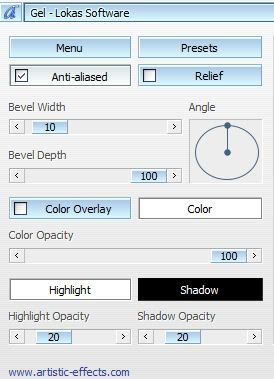
Apply gel
Duplicate
Apply gradient glow to bottom text

Add drop shadow to layers

Add copyright info

Crop and Save


Monday, February 4, 2013

Catching Snowflakes

 photo catchingsnowflakes.png

This tutorial was written by me and for those
who have a good working knowledge of psp.


Supplies Needed

Tube

 I used artwork by ©Christine Marie Kotlark at SATC


Font


Van den Velde Script DEMO 

Filters Used

Eyecandy - Gradient Glow


Okay, let's get started.

Remember to save often!!!

Open a new canvas 800 x 700

Use my tag as guide if needed

Fill with white

Add new layer and fill with color of choice
Apply mask
Merge group

Paste snow1
Duplicate
Move one to top and one to bottom

Paste tube with background

Using rectangle preset shape
Foreground gradient of two colors from tube
Background closed
Width at 10
Draw out a rectangle that lines up with the left side of tube
and past hand on right

Apply noise at 30

Add gradient glow
3,25,100,white

Paste icicles
Re-size
Duplicate
Move to the top part of frame
Merge together
Move below frame

Paste candle
Move to left bottom

Paste flower 8
Move to left bottom

Paste heart 2
Move to right bottom

Paste star deco 2
Duplicate
Move along the bottom part of frame

Paste gem snowflake 1 and 2
Duplicate and move around tag

Add name
I applied noise and gradient glow to my name

Add copyright

Close white bg and save as PNG


Wednesday, January 16, 2013

Bootylicious


Photobucket

This tutorial was written by me and for those
who have a good working knowledge of psp.

Supplies Needed

Tube of choice, I used artwork by ©Christine Marie Kotlark at SATC.
Font of choice, I used Pepita Script
Template, I used #61 by Tracy
Mask of choice, I used WSL #219
Plug-ins,  Lokas - Gel and Richard Rosenman - Scanlines

Let's Begin!

Open template and shift D.
Close original.

Delete info layer, text layer and gradient rectangle layer

I re-sized my canvas to 800 x 800
to give me more room and cropped when I was done
but this is totally up to how you like to do it.

Highlight the black circle and float
Add new layer and fill with color from tube
I used gradient #f3a6bb and #de5e7b
Apply scanlines filter using #bc1f37 
with spacing set to 2

Highlight the gradient circle and float
Add new layer and fill with #db5976

Paste large tube and crop
Change blend mode to screen

Duplicate and change the blend mode to soft light

Highlight black rectangle and float
Add new layer and fill with gradient used above
Apply slight noise set about 5 or so
Keep selected
Paste medium tube ( I mirrored mine before pasting) 
Delete

Duplicate tube
On bottom one change opacity to 50
One top tube change blend mode to screen

Paste smaller full length tube and move to center area

Using your circle preset shape draw out a 
circle a little bigger than the largest one 

Select text tool and on a curve 
(when the half moon with A shows up)
type out bootylicious

Close circle and change to raster

Float text and expand by 2
Invert
Duplicate the noise frame layer
 (bottom layer of template)

Delete
Move below text layer
Add drop shadow

Add name
Do the same steps as you just did for text

Add copyright info

Add new layer fill with gradient
Apply mask
Merge group

Save