Showing posts with label Danielle Pioli. Show all posts

Thursday, September 26, 2013

Halloween Cinderella

 photo HalloweenCinderella.gif
This tutorial was written by me and for those
who have a good working knowledge of psp.

Supplies Needed


Tube
Artwork by ©Danielle Pioli at MTA

Font
Goodbye Cruel World

My Supplies

Animation Shop (AS)


Okay, let's get started
Remember to save often!!!


Open my supplies
Shift D
Close mine
Paste tube image and place below frame
Crop to fit frame

Using your selection tool - point to point
select the face of the pumpkin
Promote to new layer

Add name

Add CR info


Copy and Paste face layer into AS

Apply Image Effects - Underwater

 photo underwater1-1_zps2f7f39af.jpg

 photo underwater2-1_zpse8b9a393.jpg

 photo underwater3_zps7d9a9e08.jpg

Delete the first frame
Ctrl A

Back to PSP and Copy Merge 
Paste into AS and Ctrl L until you have 10 frames

Drag animation to tag and line up where it goes on tube

Save as gif.

Tuesday, September 18, 2012

Feeling Flirty


Photobucket
This tutorial is for those with a good working
knowledge of psp and was writen by me.

Supplies Needed

Tube of choice, I used ©Danielle Pioli at MTA.
Font of choice, I used Kings of Pacifica.
Scrap kit, I used FTU Feeling Flirty Add On by Designs by Sarah
Mask, I used #364 by Vix

Let's Begin!

New canvas 700 x 600.

Paste frame 1.
Re-size by 65%

Using selection tool - point to point select just outside the openings in frame.

Add new layer and fill with color or paper of choice.
I used #feb9c6 and #bd95bf.

Keep selected and invert.

Paste tube and re-size to liking and place how you like it.
Hit delete.

Crop tag just a little larger than frame.
Use my tag as guide.

Paste paper 2.
Apply mask.

I duplicated mine and mirrored and flipped it.

Add name.

Add copyright.


Friday, August 31, 2012

ANTS!

Photobucket


This tutorial is for those with a good working
knowledge of psp and was writen by me.

Supplies Needed

Tube of choice, I used ©Danielle Pioli at MTA.
Font of choice, I used Kings of Pacifica.

Let's Begin!

Open my supplies and shift D.
Close original.

If you are using a different tube you may 
want to change the colors of things.

If using same tube paste the tube with the sand still showing.

Link up the sides to the rectangle and use eraser tool set to 7 opacity
and blend the right side of tube.

Duplicate frame and move one above tube.
Crop frame area at top so head is out of frame.

Add text of your choice.

Add name.

I cropped one of the ants and pasted a few places extra.
One on left ant hill area.
One on right by foot.
And one on name.

Crop.

That's it. 
Pretty simple one.


Saturday, April 14, 2012

Oh So Sweet

Photobucket


This tutorial is for those with a good working 
knowledge of psp and was writen by me.

Supplies Needed
Tube of choice, I used ©Danielle Pioli at MTA. 
Font of choice, I used Yippy Skippy Alt.
Template, I used #258 from Missy at DivineIntentionz


Let's Begin!

Open template and shift D and close original. Delete info layer.

Paste background circle I supplied. 

Paste tube(s) and place where you like them.

If using the same tube I am you will need to make a trail for your dragonfly.

Select the pen tool set to dots at width 2 and draw out a trail using color of choice. Make sure only foreground color is open.

Add drop shadow.

Close out white bg and copy merge.

Paste into tag and move to bottom.

Open white bg layer again.

On the merged layer go to Adjust - Blur - Gaussian Blur  set to 10.

I applied a canvas texture to this layer as well.

Add name and apply noise at 20 and then a gradient glow 3,25,100, white.

Add drop shadow.

Add copy right info.

Save - That's it!


Thursday, December 15, 2011

Skyscrapper

Photobucket

This tutorial is for those with a good working 
knowledge of psp and was writen by me.

Supplies Needed

Tube of choice, I used ©Danielle Pioli at MTA. 
Font of choice, I used HaloHandletter.
Template and Tears - I made so please do not share.


Let's Begin!

Open My Supplies.

On Template...

Paste your tube and place where you like.
Drop opacity to 17.

Adjust - Colorize - Hue 0, Saturation 0.

Open Tears I supplied and paste each one on your tube.
Move them around where you like.

Add name and move below glass layer.
If you have a long name it looks better on the right 
side just rote right 90 and place  at top.
Drop opacity to 40.

Add copy right.

Close all tears layers except the small one at eye.

Copy merge and paste into AS.

Back to psp and close that one and open next 
then copy merge and paste after frame in AS.

Continue doing this until all tears layers are in AS.

Ctrl A and change frame properties to 40.
Select first frame and change that one to 55.

Save as gif. 


Sunday, August 28, 2011

Love is Louder

Photobucket

Click Tag to View Tag Animated.

This tutorial is for those with a good working
knowledge of psp and was writen by me.

Supplies Needed

Tube of choice, I used ©Danielle Pioli at MTA.
*All Sales of this Tube will be Donated to Jed Foundation*

Font of choice, I used Staccato222 BT.

My Supplies - I made so please do not share.


Let's Begin!

Open My Supplies.

Select and float the left frame bg and then invert and paste tube
and position how you like it and hit delete.

Do this for the right as well as the main tube in middle.

Once you have tag looking how
you like it it's time to make her cry.

1.) Above the middle tube image add new layer
and using your selection tool - point to point
draw area like mine and flood fill with white
then lower opacity to 5 or so.
Merge down on tube layer.

Photobucket

2.) Add another layer and then using
Picture Tube Tool - water drops size 20
add a drop until you get one you like.

Photobucket

3.) Repeat this step making the tear a little bit
larger for the next ones and lower
opacity on the last few drops.

Photobucket

Add name and copy right.

Hide all tear layers and copy merged
and paste into AS.

Back to PSP and unhide first tear and copy
merge and paste after layer in AS.

Continue to do this until all tear layers are in AS.

Change frame properties to 20 for all
but first frame and set that to 200.

Save and that's that.

Tuesday, August 23, 2011

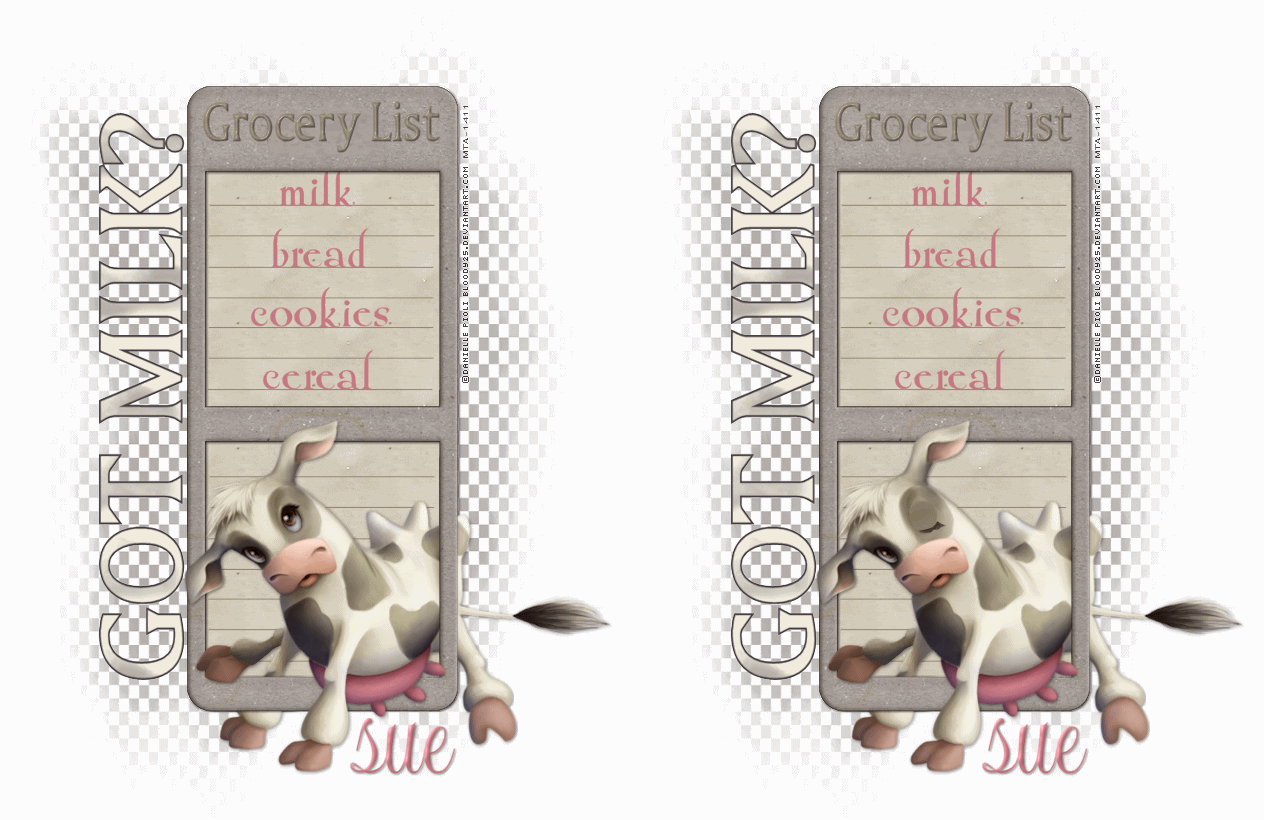
Got Milk?

Photobucket

Click Tag to View Tag Animated.


This tutorial is for those with a good working
knowledge of psp and was writen by me.

Supplies Needed

Tube of choice, I used ©Danielle Pioli at MTA.
Font of choice, I used UpDock.

Let's Begin!

Open My Supplies.
Delete info layer

Move layers like I have them or however you please.

Type out the grocery list items of choice.
Place how you like and convert to raster layer.

Paste Tube and place where you like it.

Duplicate and move below frame layer.

On top tube layer using eraser tool
erase parts of tube to make it look
as if cow is in and out of frame.
Look at mine for example.
Add dropshadow to bottom tube layer.

Add Name.

Add Copyright.

To Make Animated Wink

On tube layer using selection tool - point to point
Outline eye area

Photobucket


Add new layer and flood fill using
color around tube. I used #887f6a.

Photobucket


Add new layer and using paint brush
make a line using darker color.
I used #81765e.
Adjust - Blur - Glaussian Blur at 3.
Select none.

Photobucket


Paste my eyelash -  and place it where it looks best.
Merge all three eye layers you just made together.

Photobucket

So now you should have eye looking shut.

Copy merge and paste into AS.

Go back to PSP and hide the eye layer and copy
merge again and paste BEFORE the layer you already have.

On the open eye layer change frame properties to 250
and on the blinking layer to 25.

Save as Gif.

You are done!