Monday, August 31, 2009

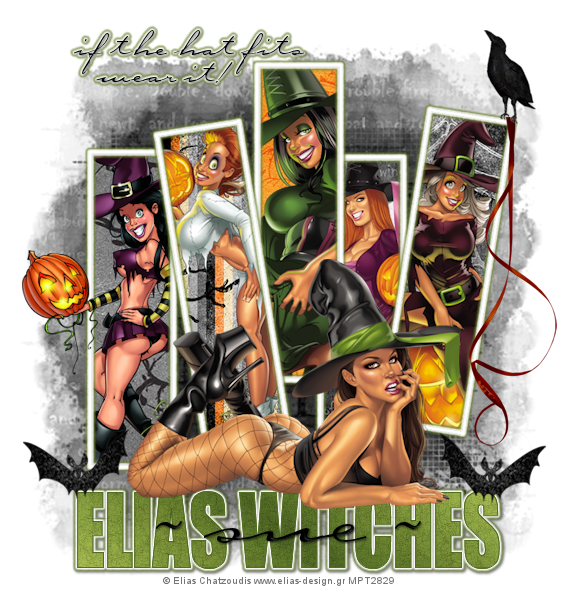
Elias Witches


This tutorial is written for those that
have a working knowledge of PSP.


You will need...

Tubes of choice, I used artwork by Elias Chatzoudis
and you can purchase his work HERE.
Don't use same tube unless you purchase it.


Font

Carpenter Script
(name and saying text)

Impact
(Elias Witches text)

Mask
Becky Mask22
You can get it HERE.

Filters Used

Eyecandy 5 Impact - Gradient Glow


Scrap Kit

I used (PTU) Halloween Scrap from
Oopsie Daisy called Thrill and Chill
You can get it HERE.


Okay, let's get started.

Remember to save often!!!

New Canvas
650 x 600
Flood Fill White

Paste Paper of Choice
Apply Mask
Merge Group


Foreground - White
Background - Null

Eclipse Tool - Rectangle
Width 5
Draw Rectangle
Aprox. 6 squares wide and 15 long
Convert to Raster
Duplicate so you have 5
Rotate 2 of them 9 degrees Left and Right
Use mine as a guide if needed.
Eyecandy 5 Impact - Gradient Glow

These Settings
Magic Wand
Select inside each rectangle
Modify - Expand by 2
Invert

Paste Paper
Hit Delete
Paste Tube and Place
Hit Delete
Select None.
Do This For All Five Rectangles.

On the Left Frame I Made Part of Tube
Outside Frame but depending on your tubes do as you like.

Place Elements of Choice.

Text - Elias Witches
(or your choice depending on tubes)

Impact Font - Caps

Gradient - Foreground / Background
Rotation 36 Repeats 1
Linear
Colors
#495d20 and #849c3e

Convert to Raster
Select - Float
Effects - Fine Leather

These Settings


Eyecandy 5 Impact - Gradient Glow
(same settings as above)

Type and other text you like and do the same as above.

Add Name

Add Drop Shadow To All Layers.

Add Copyright.

Save as desired.

Hope you enjoyed my tutorial.

Friday, August 28, 2009

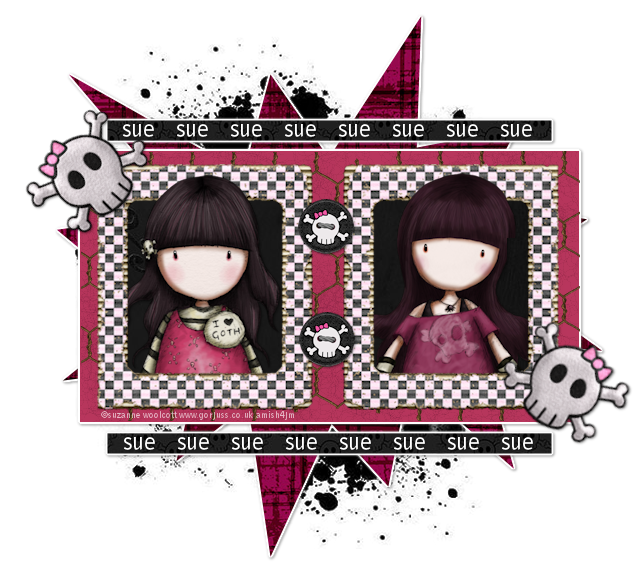
EMO


This tutorial is written for those that
have a working knowledge of PSP.


You will need...


PSP
I used X2


Tubes

I used tubes by Suzanne Woolcott
You can get them HERE.
Please do not use unless you purchase them.

Scrap Kit

I used a great kit from
KiKeKa called Tickle Me Emo
You can get it HERE.


Font

Arial

Mask

You can get it HERE.

Template

I used Temp 79 from Yvette
You can get it HERE.

Plugins

EyeCandy4000 - Gradient Glow


Okay, let's get started.

Remember to save often!!!


Open Supplies and Minimize

Open Template
Canvas Size 700 x 700

I deleted the copyright layer and the skulls layer
and the word layer but this is up to you.


Paste Paper of Choice
Apply Mask
Merge Group
Arrange - Move to Bottom

Select Each Layer of Template
Float - Invert
Paste Paper of Choice
Hit Delete
Select None

Add Gradient Glow
3, 25, 100, white

Close Out Original Layers

Paste Frame
Resize
Duplicate and put side by side
Look at mine for guide.

Selection Tool
Draw Out Square Bigger than Frame Opening
Invert
Paste Paper of Choice
Hit Delete
Select None
Duplicate and Move Below Frames

Add Elements of Choice

Paste Tubes
Crop Excess


Add Name
Type Name Out A Few Times
Depending on Size of Name

Duplicate and Place Both

Add Copyright

Add Drop Shadow to Layers

Save

That's it!!!!

Monday, August 24, 2009

Sweet Tooth


This tutorial is written for those that
have a working knowledge of PSP.


You will need...


PSP

I used X


Tube

Tube of choice, I used artwork by Elias Chatzoudis
and you can purchase his work HERE.
Don't use same tube unless you purchase it.


Scrap Kit

I used (PTU) scrap from
Oopsie Daisy called My Baby Cakes
You can get it HERE.

Font

2Peas Mister Giggles


Mask

I used gemsmask19


Okay, let's get started.

Remember to save often!!!


Open Supplies and Minimize

Open New Canvas
600 x 550


Paste Paper of Choice

Apply Mask
Merge Group

Paste the Angle Wings from Kit
Resize by 10
(now it looks like a tooth)
Paste Around Mask
Lower Opacity to 25

Select Eclipse Tool
Paper of Choice
As Background Pattern
Close Off Foreground

Draw Out Oval Shape
(look at mine for guidence)
Convert to Raster
Float
Modify
Expand by 6
New Raster Layer
Flood Fill with White
Contact By 8
Hit Delete


Do the Same as Above for Circle Shape
Using a different
Paper of Choice

Draw Another Oval Same Size as Above
Text (A on curve) - Write Saying of Choice

Click Eye in Layer Pallett and Close Oval Layer
So only the text layer shows.

Convert to Raster
Eye Candy - Gradient Glow
3 - 25 - 100 - white

Paste Tube

Select Oval Layer
Float - Invert
Duplicate and Mirror Tube
Place on Oval Area and Hit Delete

Lower Opacity
to around 70

Place Elements of Choice
from Scrap Kit

Add Copyright

Add Name

Add Drop Shadow to Layers

Save

That's it!!!!

Hope you were able to follow along and enjoy the tutorial.

Saturday, August 22, 2009

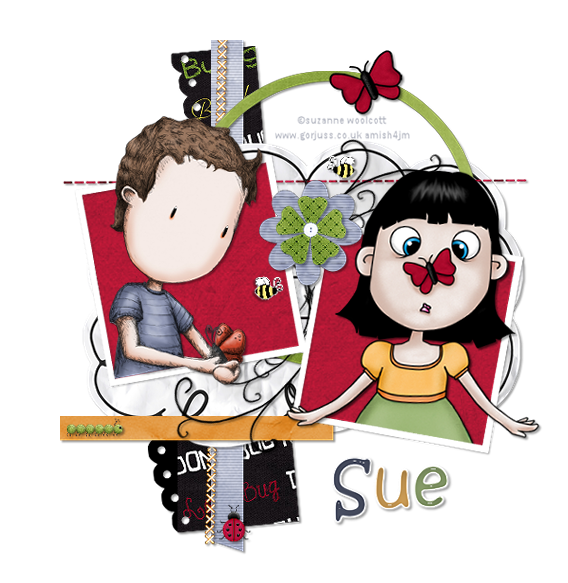
Buggy Love


This tutorial is written for those that
have a working knowledge of PSP.


You will need...

Tube of choice, I used artwork by Suzanne Woolcott
Pack 4 and 6
and you can purchase her work HERE.
Don't use same tube unless you purchase it.


Font

Kristen ITC


Filters Used
(all are optional)

Eyecandy 5 Impact - Glass
Eyecandy4000 - Gradient Glow
PhotoEffex - Scanlines


Template

You can get it HERE.


Scrap Kit

I used this totally adorable scrap kit from
Oopsie Daisy called Don't Bug Me.
You can get it HERE .


Okay, let's get started.

Remember to save often!!!

Open template and shift D and close original.
Go to image / canvas size / 700 x 700

This is a pretty simple tutorial and you will be doing the same thing for each layer.

Select Each Layer / Float / Invert
Paste Paper of Choice
Hit Delete
Select None.

On Layer 2 and 10
I did as above and then
PhotoEffex - Scanlines
default settings

Once All Layers are Done
Paste Journal Paper
Place right above layer 2.

Add Elements of Choice

Add Tubes
Crop Excess

Add Copyright

Add Name

Eyecandy 5 Impact - Glass
Clear - no reflection
setting

Eyecandy4000 - Gradient Glow
3 - 25 - 100
white

Add Drop Shaddow
To All Layers

Save as desired.

Hope you enjoyed my tutorial.

Friday, August 21, 2009

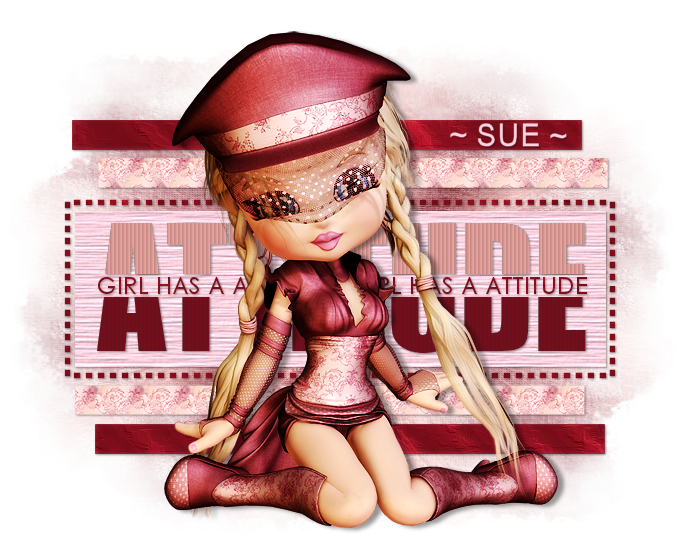
Attitude


This tutorial is written for those that
have a working knowledge of PSP.


You will need...


PSP
I used X


Tubes

Poser Girl which is included in scrap kit.


Scrap Kit

I used totally cute scrap from
Wicked Princess called Dangerously Sweet
You can get it HERE.

Font

Cordia New


Template

I used temp # 214 from Missy
You can get it HERE.

Mask

I used gemsmask19
You can get it HERE.


Okay, let's get started.

Remember to save often!!!


Open Supplies and Minimize

Open Template
Canvas Size
700 x 700


Paste Paper of Choice or Pattern

Apply Mask
Merge Group

Select Black Rectangle Layers
Float - Invert
Paste Paper of Choice
Hit Delete
Select None
Duplicate
Effects - Art Media
Brush Strokes
Select Pink Rectangle Layers
Float - Invert
Paste Paper of Choice
(I used Selection of Posers Shirt as a Pattern)
Hit Delete
Select None


Select Large Rectangle Layer
Float - Invert
Paste Paper of Choice
Hit Delete
Select None

Select Attitude Word Layer
Float
New Layer
Fill With Color Of Choice
Select None
Effects - Blinds
4 - 20 Black

Select Middle Word Layer
Float - Invert
Paste Paper of Choice
Hit Delete
Select None

Add Tube

Add Any Other Elements
You Would Like

Add Copyright

Add Name

Add Drop Shadow to Layers

Save

That's it!!!!

Hope you were able to follow along and enjoy the tutorial.

Thursday, August 20, 2009

Cats (SW)


This tutorial is written for those that
have a working knowledge of PSP.


You will need...


PSP
I used X


Tubes

Tube of choice, I used artwork by Suzanne Woolcott
and you can purchase her work HERE.
Don't use same tubes unless you purchase them.


Scrap Kit

I used an awesome scrap from
Sticky Kisses called Pure America
You can get it HERE.

Font

Runaround Sue NF


Filters Used

Eye Candy - Gradient Glow

My Supplies
temp, mask and yarn


Okay, let's get started.

Remember to save often!!!


Open Supplies

Colorize Mask Layer
Color of Choice

Select Large Rectangle Layer
Float - Invert
Paste a Paper of Choice
Hit Delete
Select None

Add Gradient Glow
3, 25, 100, White

Do Same on Smaller Rectangle Layer

Add Elements and Tubes

(If you wish to make yarn in basket you just crop string off and
duplicate to fill basket colorize if you want crop excess)

Add Tubes

Add Copyright

Add Name and Saying of Choice

Eye Candy - Gradient Glow
3 - 25 - 100 - white

Add Drop Shadow to Layers

Save

That's it!!!!

Hope you were able to follow along and enjoy the tutorial.

Saturday, August 8, 2009

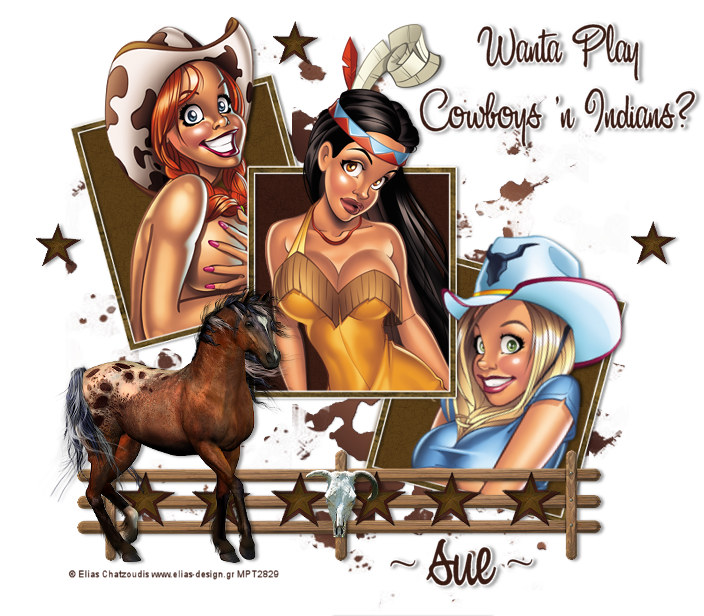
Cowboys 'n Indians


This tutorial is written for those that
have a working knowledge of PSP.


You will need...


PSP
I used X


Tubes

Tube of choice, I used artwork by Elias Chatzoudis
and you can purchase his work HERE.
Don't use same tube unless you purchase it.


Scrap Kit

I used an awesome scrap from
Sticky Kisses Designs called Boots -n- Chaps
( which includes the horse I used )
You can get it HERE.

Font

AL Serenade


Filters Used

Eye Candy - Gradient Glow

My Supplies

Mask and Pattern


Okay, let's get started.

Remember to save often!!!


Open Supplies and Minimize

Open New Canvas
700 x 700

Flood Fill
with White

Paste Paper of Choice or Pattern

Apply Mask
Merge Group

Select Rectangle Tool
Foreground Null
Background Paper of Choice
I used Paper 19

Draw Out a Rectangle
use my frame as guide

Select - Float
Contract by 8
Hit Delete
Select None

Eye Candy - Gradient Glow
3 - 25 - 100 - white

Duplicate Twice
Rotate Bottom Frame Left 15
Rotate Middle Frame Right 15

Click Inside Frames
Modified by 4
Invert
Paspe Paper or Choice
or Color Pallett

Add Tubes
Crop Off Excess

Add Fence
Duplicate and Place Side by Side
use mine as guide

Place Skull

Add Horse

Add Any Other Elements
You Would Like

Add Copyright

Add Name and Text of Choice

Eye Candy - Gradient Glow
3 - 25 - 100 - white

Add Drop Shadow to Layers

Save

That's it!!!!

Hope you were able to follow along and enjoy the tutorial.

Friday, August 7, 2009

Pretty in Pink


Photobucket

This tutorial is written for those that
have a working knowledge of PSP.


You will need...


PSP
I used X


Scrap Kit

I used a totally cute scrap from
Wicked Princess Scraps called Simply Sassy
( which includes the tube I used )
You can get it HERE .

Font

Escalido
(saying)

2Peas Mister Giggles
(name)


Filters Used

Eye Candy - Gradient Glow


Mask


Okay, let's get started.

Remember to save often!!!


Open Supplies and Minimize

Open New Canvas
700 x 700

Flood Fill
with White

Paste Paper of Choice
Resize

Apply Mask
Merge Group

Paste Frame
Eye Candy - Gradient Glow
3 - 25 - 100 - white

Selection Tool - Rectangle
Draw rectangle a little bigger than the inside of the rectangle
Selections -Invert

Paste Paper
Hit Delete
Select None

Duplicate Paper Layer
Rotate 10 Degrees Left
Merge Both Paper Layers Together
Effects - Fine Leather

Photobucket

Add Elements
( I used girl tube and doodle that's supplied in kit )

Add Text of Choice
Eye Candy - Gradient Glow
3 - 25 - 100 - white

Add Name
Adjust - Add Noise
Set at 10
Eye Candy - Gradient Glow
3 - 25 - 100 - white


Add Drop Shadow to Layers
Save

That's it!!!!

Hope you were able to follow along and enjoy the tutorial.

Tuesday, August 4, 2009

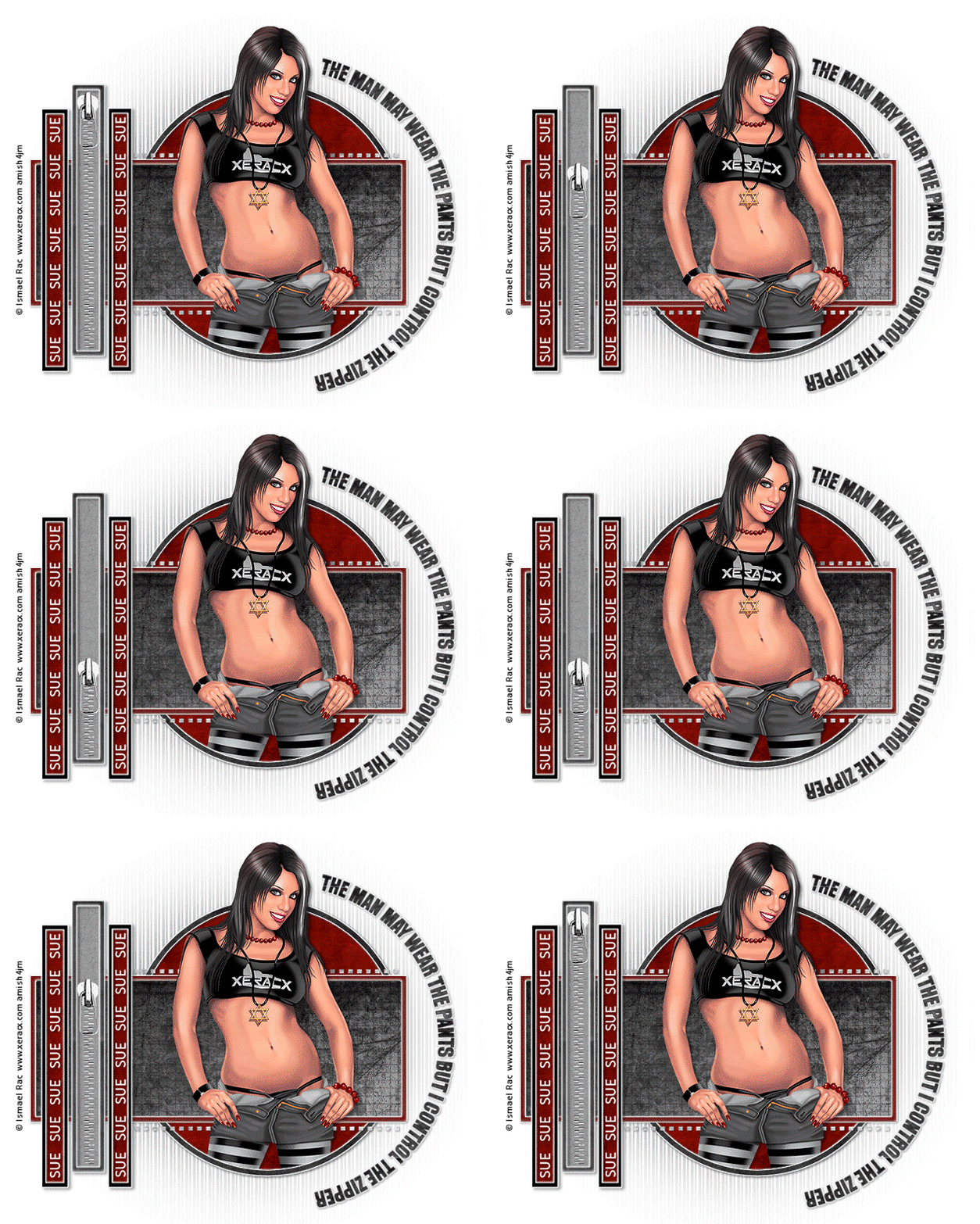
The Zipper


Photobucket

This tutorial is written for those that
have a working knowledge of PSP.


You will need...


PSP
I used X

Animation Shop

Tube of Choice
I used (IRPG-AJ) Tube from Ismael Rac
You can find him HERE.
Please Do Not Use Same Tube
Without Purchasing It.


Scrap Kit

I used papers from a kit by
Ziggle Designs called SK8R
You can get it HERE.
Any Papers or Color Pallet will work.

Font

Calibri
PTU so can't supply


Filters Used

Eye Candy - Gradient Glow

Template

I used Template #11 from Tracy F. Designs
You can get it HERE.

My Supplies
masks, wordart, and zipper animation


Okay, let's get started.

Remember to save often!!!


Open Supplies and Minimize

Open Template
Shift D
Close Original
Delete Info Layer

New Raster Layer
Flood Fill with White
Send to Bottom

Paste Paper of Choice
Apply Mask EBDmask52
Merge Group

Apply Mask 20 20
Merge Group

Select Circle Layer
Float - Invert
Paste Paper
Hit Delete
Select None

Select Frame of Cirlce Layer
Float - Invert
Paste Paper
Hit Delete
Select None

Effects - EC Gradient Glow
3 - 25 - 100 - white

Drop Shadow

Repeat this for
All Layers of Template
Remember that Gradient Glow
is for Frame Layers

Once that is done
Paste Tube
Crop Excess

Add Name

To Write on Curve
if not using wordart I supplied

Chose Color or Paper for
Foreground and Background

Using the Eclipse Tool
Make a Circle
bigger than the one we already have

Keep Circle as a Vecter
Click Text Tool

Click the right center of circle when
you see the A on a curve
and write saying of choice.

In Layers Pallette Click the Plus Sign
for the Circle and Text Layer
Hide the Circle
Convert to Raster

Add Gradient Glow

Add Copyright

Edit
Copy - Merged

Paste into AS
Crtl L
until you have 20 layers

Open Zipper Animation

Crtl A
Drag to Tag
and place like mine.

Save

That's it!!!!

Hope you were able to follow along and enjoy the tutorial.