Monday, June 29, 2009

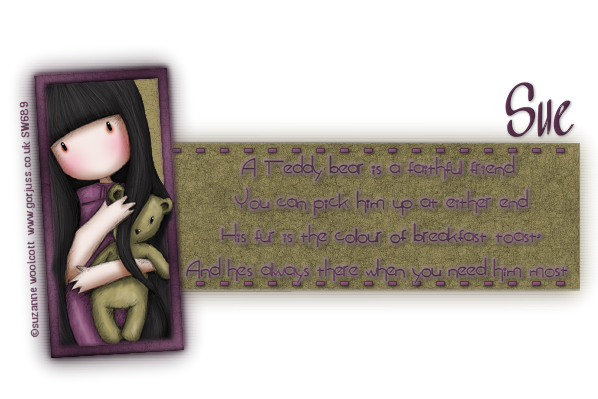
Teddy Bear


Photobucket


This tutorial is written for those that
have a working knowledge of PSP.


You will need...

Tube of choice, I used artwork by Suzanne Woolcott
and you can purchase his work HERE.
Don't use same tube unless you purchase it.


Font

Do I like Stripes?
A&S Wizard


Filters Used

Eyecandy4000 - Gradient Glow
PhotoEffex - Scanlines
You can get it HERE.


Okay, let's get started.

Remember to save often!!!

New canvas size / 700 x 700

Using rectangle preset shape draw out two rectangles like mine.
Convert for each one.

Using only foreground line style dash out line the inside of the right rectangle.

Select Frame Layer / Float / Modify / Smooth by 10
New Raster Layer /Flood Fill with color (s).
Effects - Texture - Fine Leather
Black , Angle 239 , 10 , 250 , 139 , 6
Select None.

Select Frame BG Layer / Float / Modify / Smooth by 10
New Raster Layer / Flood Fill with different color
Effects - Texture - Fine Leather
Black , Angle 239 , 10 , 250 , 139 , 6
Select None.

Select Rectangle Layer
Do Same Steps as Above

Select Dash Layer / Float / Modify
New Raster Layer /Flood Fill with a color.

Add Tube

Add Saying to Rectangle Layer

A Teddy bear is a faithful friend
You can pick him up at either end.
His fur is the colour of breakfast toast,
And he's always there when you need him most.

I Added Gradient Glow - Thin Setting


Make sure White BG Layer is closed
Edit / Copy Merged
Paste as a New Layer
Place Below Original Layers
Blur / Gaussians Blur
4
Repeat once more

PhotoEffex - Scanlines
Default


Add Name


Add Drop Shadow To All Layers.

Add Copyright.

Save as desired.

Hope you enjoyed my tutorial.

Sunday, June 28, 2009

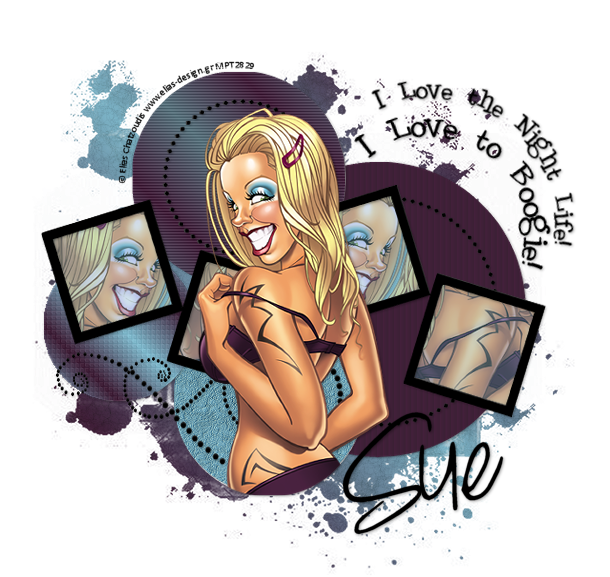
Boogie


Photobucket


This tutorial is written for those that
have a working knowledge of PSP.


You will need...

Tube of choice, I used artwork by Elias Chatzoudis
and you can purchase his work HERE.
Don't use same tube unless you purchase it.


Font

DJB Angel Baby
PTU Font - Sorry Can't supply


Filters Used

Xero - Fritillary
PhotoEffex - Scanlines
You can get it HERE.

Template

Temp # 3 From Melissaz Creationz
You can get it HERE.
( half way down on right side there is a section called Zip Files )


Mask

You can get it HERE.


Okay, let's get started.

Remember to save often!!!

Open template and shift D and close original.
Go to image / canvas size / 700 x 700

Select A Circle Layer / Float / Modify / Smooth by 10
New Raster Layer /Flood Fill with Color (s).
Select None.


Do This For All Circle Layers

Add Filters to Circle Layers
Right Circle Layer I used Effects - Blinds
6, 20, Black , unchecked Horizonal , checked light

Top Circle Layer I used Scanlines - Default

Left Circle Layer I used xero - Fritillary
5 , 15 , 10 , 0

Bottom Circle Layer I used Effects - Art Media - Brushstrokes
Play with it until you like it.

Make a Gradient out of 2 colors from tube
Go to Bottom
New Layer
Flood Fill with Gradient
Effects - Texture Effects - Fine Leather
Default Settings
but change color to Black


Select Dot Layers / Float
New Raster Layer /Flood Fill with color
Select None

Select Frame Layer / Float
New Raster Layer /Flood Fill with color
Select None

Select Frame BG Layers / Float
New Raster Layer /Flood Fill with color
Invert

Paste Tube

Duplicate
Mirror one of them

Lasso around Right Frame Background
Selections - Invert
Position Mirrored Tube and Hit Delete

Do the same for all 4 Squares.

Lower Opacity to 67

Place Original Tube Layer Where You Want It
Trim any excess.

Add Drop Shadow To All Layers.

Add Copyright.

Add Name.

Save as desired.

Hope you enjoyed my tutorial.

Wednesday, June 10, 2009

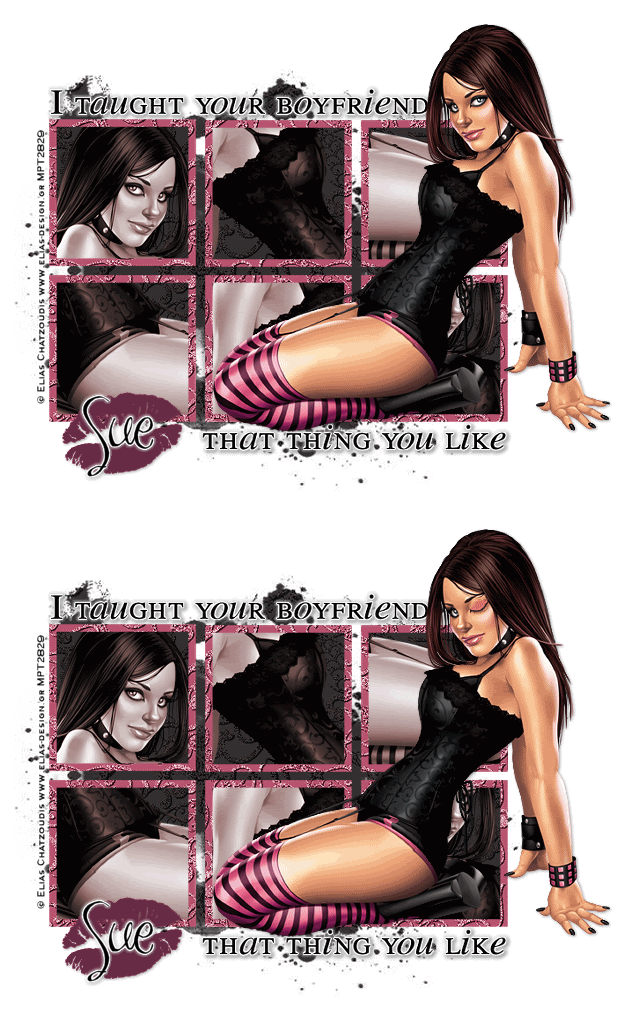
That Thing You Like


Photobucket


This tutorial is written for those that
have a working knowledge of PSP.


You will need...

Tube of choice, I used artwork by Elias Chatzoudis
and you can purchase his work HERE.
Don't use same tube unless you purchase it.


Font

Ma Sexy


Filters Used

Eyecandy4000 - Gradient Glow


Scrap Kit

Dreamy scrap kit by Jen / Country Style Designs.
http://countrystyledesigns.com/store


Template

Made by Beth at Creative Misfits
10th one down

Mask


Okay, let's get started.

Remember to save often!!!

Open template and shift D and close original.
Go to image / canvas size / 700 x 700
Delete Copyright Layer

I merged all my squares together
and all my frames together
so it was easier for me to work with.
This is totally up to you which way is easier individually or all together.

Select Squared Layer / Float / Invert
Paste a paper from kit.
Hit Delete
I used paper 9
Select None.

Select Frame Layer / Float / Modify / Smooth by 10
Paste a paper from kit.
Hit Delete
I used paper 10
Select None.


Select Lips Layer / Colorize
to match your tube


Paste Tube

Duplicate / Mirror

Magic Wand / Select a Square
Invert

Move Duplicated Tube To Square
Place as liked
Hit Delete.
Select None.

Follow this step untill all squares are filled in.
Look at my example for guidence if needed.

Merge Tube Squares Together

Colorize
I used 3 / 43

Select Word Layer
EyeCandy / Gradient Glow
3 / 25 / 100
White


Place Original Tube Layer Where You Want It
Resize if desired.

Add Name
Gradient Glow

Click White BG Layer in Layers Pallet
Edit / Paste
Paper of Choice
I used paper 9

Layers / Apply Mask
Merge Group

Add Name
Convert to Raster
Add Gradient Glow


Add Drop Shadow To All Layers.

Add Copyright.

Save as desired.


To Animate


I used paintbrush on a new layer and colored eye in with flesh color
on another layer I airbrush eyeshadow
merged those two layers

Edit / Copy Merge
Paste in AS

Close Eyeshadow Layer
Edit / Copy Merge
Paste in AS
Before other Layer

On Open Eyed Layer
Right Click / Frame Properties
200 or as desired.

Hope you enjoyed my tutorial.