Sunday, April 26, 2009

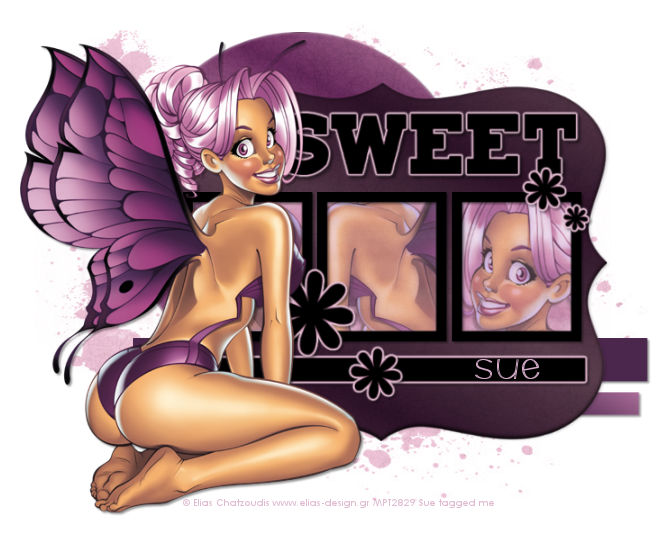
Sweet Elias

Photobucket


This tutorial is written for those that
have a working knowledge of PSP.


You will need...

Tube of choice, I used artwork by Elias Chatzoudis
and you can purchase his work HERE.
Don't use same tube unless you purchase it.

Template #10 from Teresa's.
You can get it HERE.

Mask you can get that HERE.

No Scrap Used.
You can use one if you would like.

Eyecandy4000 / Gradient Glow

Xero / Pocelain


Font I used was Scrap Round


Okay, here we go...

Remember to save often!!!

Open template and shift D and close original.
Go to image / canvas size / 700 x 700
Flood fill with a color from your tube
apply mask
Layers - Merge Group

Select Circle layer / Float
New Raster Layer /Flood Fill with a different color from tube.
(we will be doing the above steps for all layers)
Effects / Texture Effects / Fine Leather
Color Black / Blur 10 / Transparency 250 / Furrows 50 / Length 6
Apply.
Select None.
Close out original layer.

Select Black Layer
Float / New Raster Layer / Flood Fill
I used gradient of two colors from tube.
Apply same Fine Leather Effect
Select None.
Lower Opacity to around 44.
Leave Original layer showing.

On Bottom Strip Layers
Select / Float / Flood Fill
Select None.

On Top Strip Layer / Sweet Word Layer / Flowers
Select / Float / Flood Fill
Select None.
EyeCandy / Gradient Glow
3 / 25 /100
color from tube

On Frame BG Layer
Select / Float / Flood Fill
Select None.

Add Tube
Place where you like it.
Duplicate and Mirror then drag below frame outline layers.
Select Frame BG Layer
Float / Invert
Go back to duplicated tube and hit delete.
Do this for all three spots.
Effects / Xero / Porcelain
Default Settings.
Lower Opacity to about 67.
Do for all three layers.

Add Copyright

Add Name

Add a drop shadow of choice to your layers.
Save as desired.

Hope you enjoyed my tutorial.


Thursday, April 23, 2009

Good Ship

Photobucket


This tutorial is written for those that
have a working knowledge of PSP.


You will need...

Tube of choice, I used artwork by Elias Chatzoudis
and you can purchase his work from My PSP Tubes HERE.
Don't use same tube without purchasing.

Template #84 from Missy
You can get it HERE.

Freedom Forever scrap kit by MoMo/Country Style Designs.
http://countrystyledesigns.com/store


Anchor and lifering you can get HERE.

PhotoEffex / Scanlines

Font I used was Scrap Silly.


Okay, here we go...

Remember to save often!!!

Open template and shift D and close original.
Go to image / canvas size / 700 x 700
delete copyright and heart layers.

On large circle layer
Select All / Float / Invert
Paste a Paper and hit delete.
I used paper 1.

On light gray rectangle layer
Select All / Float / Invert
Paste a Paper and hit delete.
I used paper 7.
Select None.

On black rectangle layer
Select All / Float / Invert
Paste a Paper and hit delete.
I used paper 8.
Select None.

Select frame outline and float and flood fill
with a color from your tube.

Add tube and place where you like it.
Crop excess.

On small gray circle layer
Select it and flood fill with black.

Paste Lifering and place it over the circle bg
Select / Float / New Raster Layer
Flood fill with a dark blue or a color from tube.
Select None.
Drop layer below the lifering layer
Select life ring layer and change
Blend Mode to Luminance Legacy
Duplicate Tube Layer
Mirror
Place above the black circle and click on the circle layer
Select / Float / Invert
On mirrored tube layer hit delete.
Lower Opacity to about 60
Place like mine.

Add Elements.

On the anchor I floated it and filled with a color.

Hide White Layer
Go to Edit / Copy Merge
Unhide and select White Layer
Paste as a new layer
Adjust / Blur / Gaussian Blur 10
Plugins / PhotoEffex / Scanlines
Default Setting.

Add Copyright and Name.

Add a drop shadow of choice to your layers.

Save as desired.

Hope you enjoyed my tutorial.


Sunday, April 19, 2009

I Love My Friends


Photobucket


This tutorial is written for those that
have a working knowledge of PSP.


You will need...

Tubes of choice, I used artwork by Suzanne Woolcott
and you can purchase her work HERE.

Nicole Young's (FTU) Embellishments
called Lovey Dovey
You can get it HERE at DSP.
You need to register, but it's free and well worth it
with all the freebies they have.

Mask is WSL_Mask84
You can get that HERE.

I created my own patterns and have include those
along with the extra added words for you HERE.

Font I used is one of my favorites, Snooty Fox NF
Get it HERE.

EyeCandy 4000 - Gradient Glow


Okay, here we go...

Remember to save often!!!

Open all supplies and minimize them.
Maximize Element 1 and Shift D and close out original.
Resize to your liking.
Go to Layers and make cansize 700 x 700
Add New Raster Layer and flood fill with White and send to bottom.
In Material Properties click on background and under pattern
find the one named bg pattern and flood fill
a New Raster Layer then apply mask.

Photobucket


Go to Layers and Merge group.
Make sure you have this layer beneth the heart layer but above the white.
Select the selection tool and go around the open area on the heart layer.
On a New Raster Layer flood fill with the dark pattern I supplied.
Keep Selected
Drop below heart layer.
Add Tubes of your choice and resize to your liking.
Hit Delete.
Select None.
Add Element 3 and resize and place where you like it.
Add Words I supplied or make your own or leave as is LOL totally up to you.
Add Copy Right
Add Name using pattern I supplied or one of your choice.
Convert to Raster Layer and then use Gradient Glow
with these settings....

Photobucket

Photobucket


Add a drop shadow of choice to your layers.

Save as desired.

Now that wasn't so bad, was it?
Hope you had fun.

Wednesday, April 15, 2009

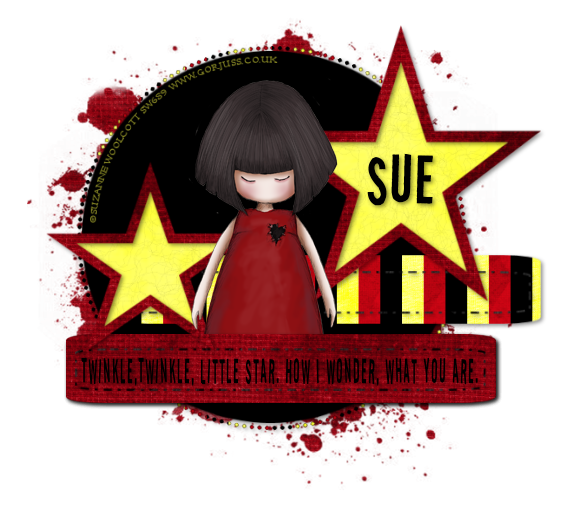
Twinkle Twinkle


Photobucket


This tutorial is written for those that
have a working knowledge of PSP.


You will need...

Tube of choice, I used artwork by Suzanne Woolcott
and you can purchase her work HERE.

Template #9 from Lacarolita's blog
You can get it HERE.

Mask you can download HERE.

I used a FTU Scrap kit called Technocolor from Scrappy Bit of Fun
and you can get it HERE

Font I used was 2Peas Tasklist and it's a PTU so I can't supply it,sorry.


Okay, here we go...

Remember to save often!!!

Open template and shift D and close original.
Go to image / canvas size / 700 x 700

Copy and Paste a paper of your choice and apply mask.

On Circle Layer go to selections
select / float / invert
Copy and Paste paper of choice and hit delete.

You do this for all layers of the template and paste desired paper.

Add Twinkle Twinkle text or whatever you like.

Add Tube of choice and postion where you like.
If you postion like I did then select rectangle layer and float and hit delete on tube layer
so that it looks like it's behind rectangle.

Add Copyright
I applied on a curve, if you aren't familiar with this technique,
here is how to do it...
On tool bar select eclipse tool and make a circle equal to the circle layer
then go to text and on edge of circle you will see a curved A, type out copyright
and make sure you get it where you want it, then go to layers pallet and where the plus sign
is on the layer, click it to show you both layers,
and then close off (by clicking the eye) circle layer and then convert to raster layer.

Add Name.

Add a drop shadow of choice to your layers.

Save as desired.


Hope you enjoyed my tutorial.


Thursday, April 9, 2009

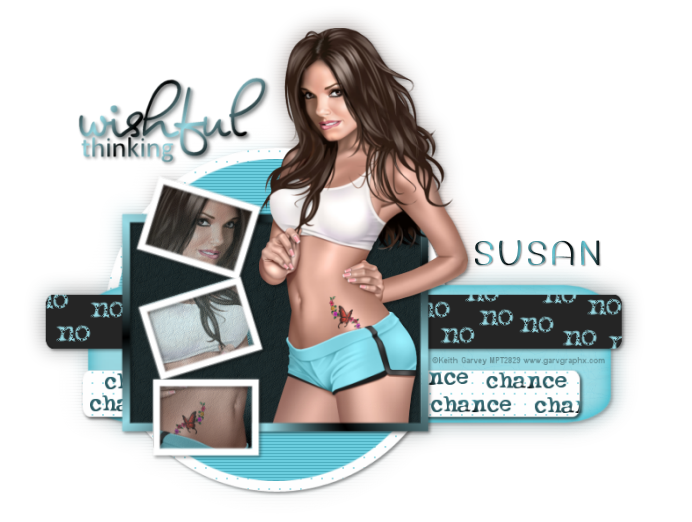
Wishful Thinking


Photobucket


This tutorial is written for those that
have a working knowledge of PSP.


You will need...

Tube of choice, I used artwork by Keith Garvey
and you can purchase his work here.
do not use the same image in the tutorial
unless they too have the appropriate
My PSP Tubes artist license to do so.

Template is one I received through yahoo groups years ago.
You can get it here.

Word art you can get here.

No scrap needed, but you can use scrap papers if you want.

PhotoEffex / Scanlines

Fonts I used is bigattino font and typewriter font.

Okay lets begin!

Remember to save often!!!

Open template and shift D and close original.
Go to image / canvas size / 700 x 700
On the large rectangle layer
select / float / flood fill with color from your tube
do this for the circles and the rectangles
on my small rectangle I added Effect / Weave
with these settings...
2,10,8, weave color white, gap color of rectangle, fill gaps

On Medium and Small rectangle layers type any words you would like
and place around layer randomly and select rectangle layer / float / invert
go to text layers again and hit delete

On circle layer I used Effects / Photoeffex / Scanlines
default settings

Large Frame I used two colors from tube and on
material layer / gradient / foreground-background


Photobucket


I applied same weave as above to the Large Circle

Use my tag for reference.

Paste tube / cut off any excess

Duplicate tube and move over and above the small rectangles
Select rectangles / Float / Invert
Go back to tube and hit delete.

Close off white bg and go to Edit / Copy Merge
Paste as a new layer and make sure it's on bottom
Adjust / Blur / Glaussian Blur at 10
Apply Scanlines same as above.

Add Wordart / Name / Copyright

Add drop shadow of choice to layers.

Re-size / Save.


Hope you enjoyed my tutorial.


Thursday, April 2, 2009

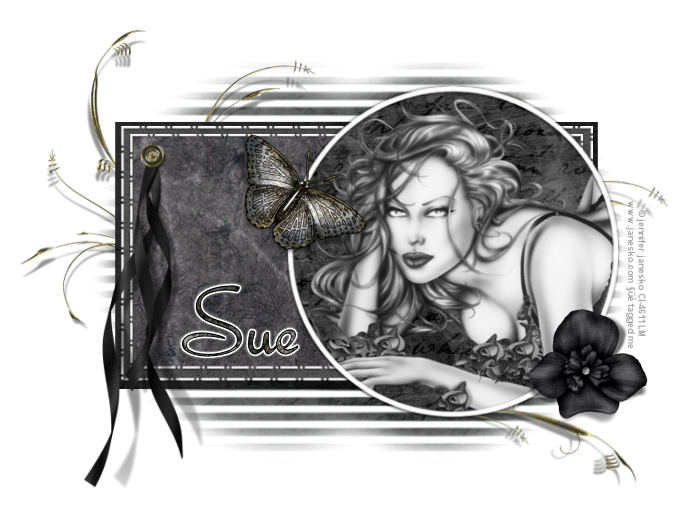
Bella


Photobucket


This tutorial is written for those that
have a working knowledge of PSP.


You will need...

Tube of choice, I used artwork by Jennifer Janesko
and you can purchase her work here.
Scrap kit- the one I used or one of choice,
I used (PTU) Belle De Nuit by Irene Alexeeva and you can find her site here.
Template is one of ButterflyFlutterby's called I'm Stuffed
You can get it here.
Eye Candy 4000 / Gradient Glow
Font I used is Bella.

Okay lets begin!

Remember to save often!!!

Open template and shift D and close original.
Go to image / canvas size / 600 x 600

new raster layer / flood fill with white
I didn't use a lot of the layers that are supplied, so just delete the ones not used.
On the mask layer
select / float / defloat / invert
choose a paper and paste and hit delete
do this for the circle and the rectangles
Add elements of your choice
Look at my tag for reference on placement.
Select circle layer
float / defloat / invert
paste tube / postion / delete
change blend mode to luminance (legacy)
Add Name and Gradient Glow
Add Copyright
Add Drop shadow of choice.

Save as desired.

Hope you enjoyed my tutorial.